



Portfolio Image
Shop Tech Support - Student Innovated, Professional Quality
Submit a Ticket Our Services About Us
24hResponse Time
100%Personal Attention

Fully Certified

Professional technicians with verified expertise in PC repair, building, and support

24-Hour Response

We prioritize every ticket and respond within 24 hours to get you back up and running

🔒

Data Secure

Your privacy and data security are our top priority with strict confidentiality policies

Quality Guaranteed

We stand behind our work with expert service and professional-grade components

How Can We Help?

Submit a new support request or check the status of an existing one.

Our Services

How It Works

From submission to completion in 4 simple steps

01

Submit Your Request

Fill out our quick support form with details about your issue. Takes just 2 minutes.

02

We Diagnose

Our team assesses your PC and identifies the issue within 24 hours. You'll get a full report.

03

We Fix It

We perform the repair or service and keep you updated throughout the process via your ticket.

04

You're Done

Receive your PC fully tested and ready to go. Your satisfaction is guaranteed.

Our Work

Recent projects and installations

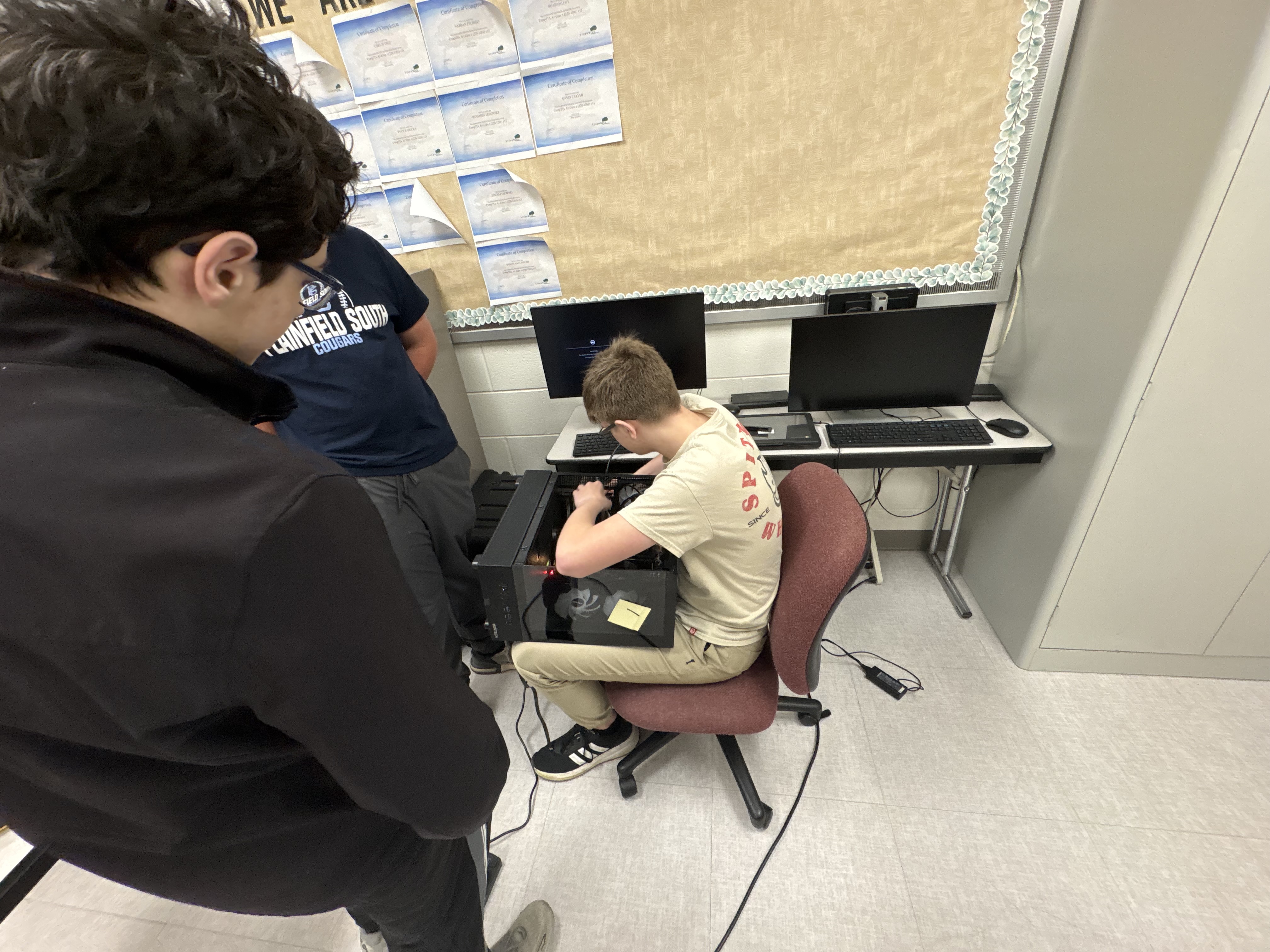
PC Build Project 1

Custom PC Build

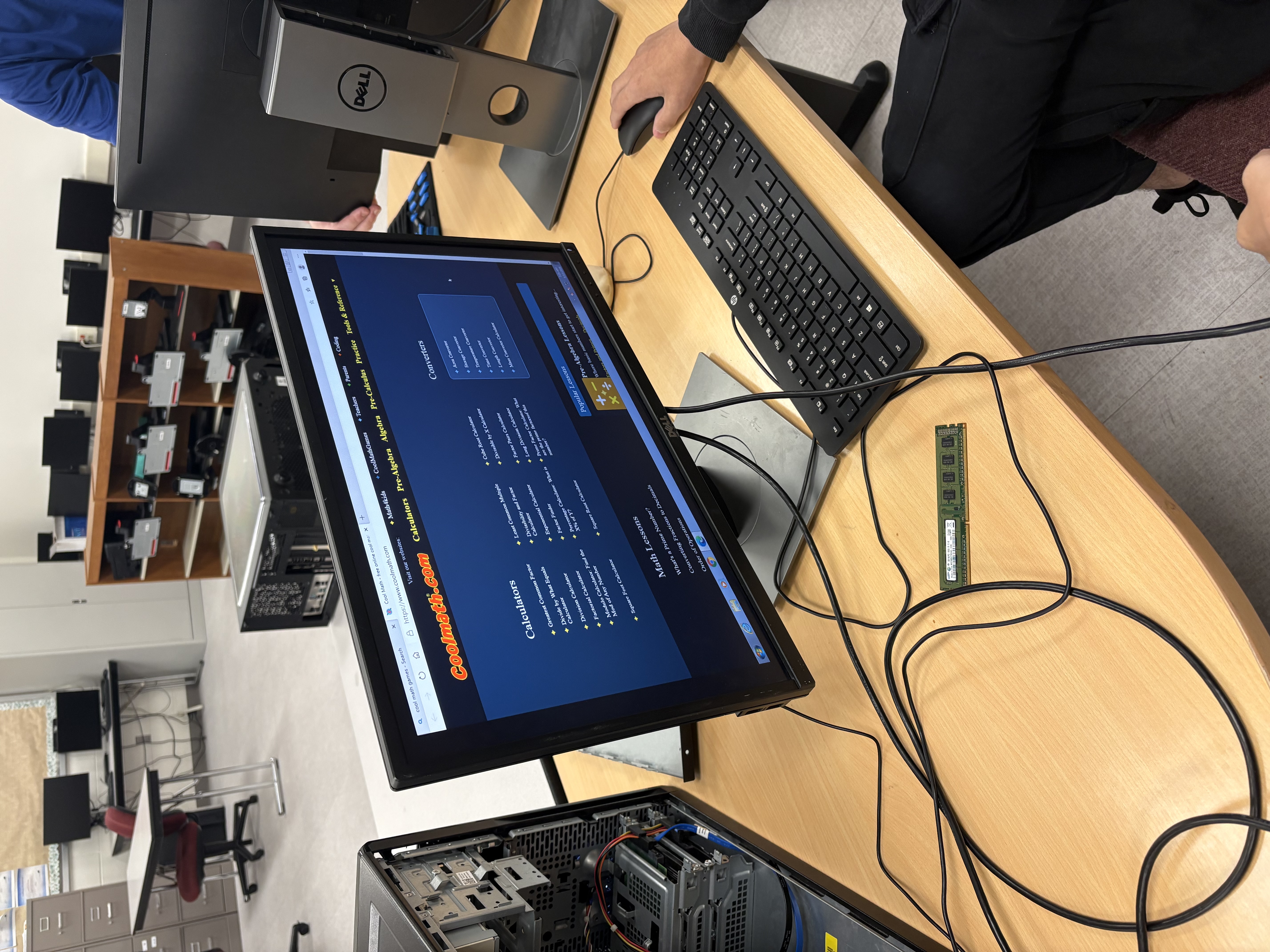
PC Build Project 2

High Performance System

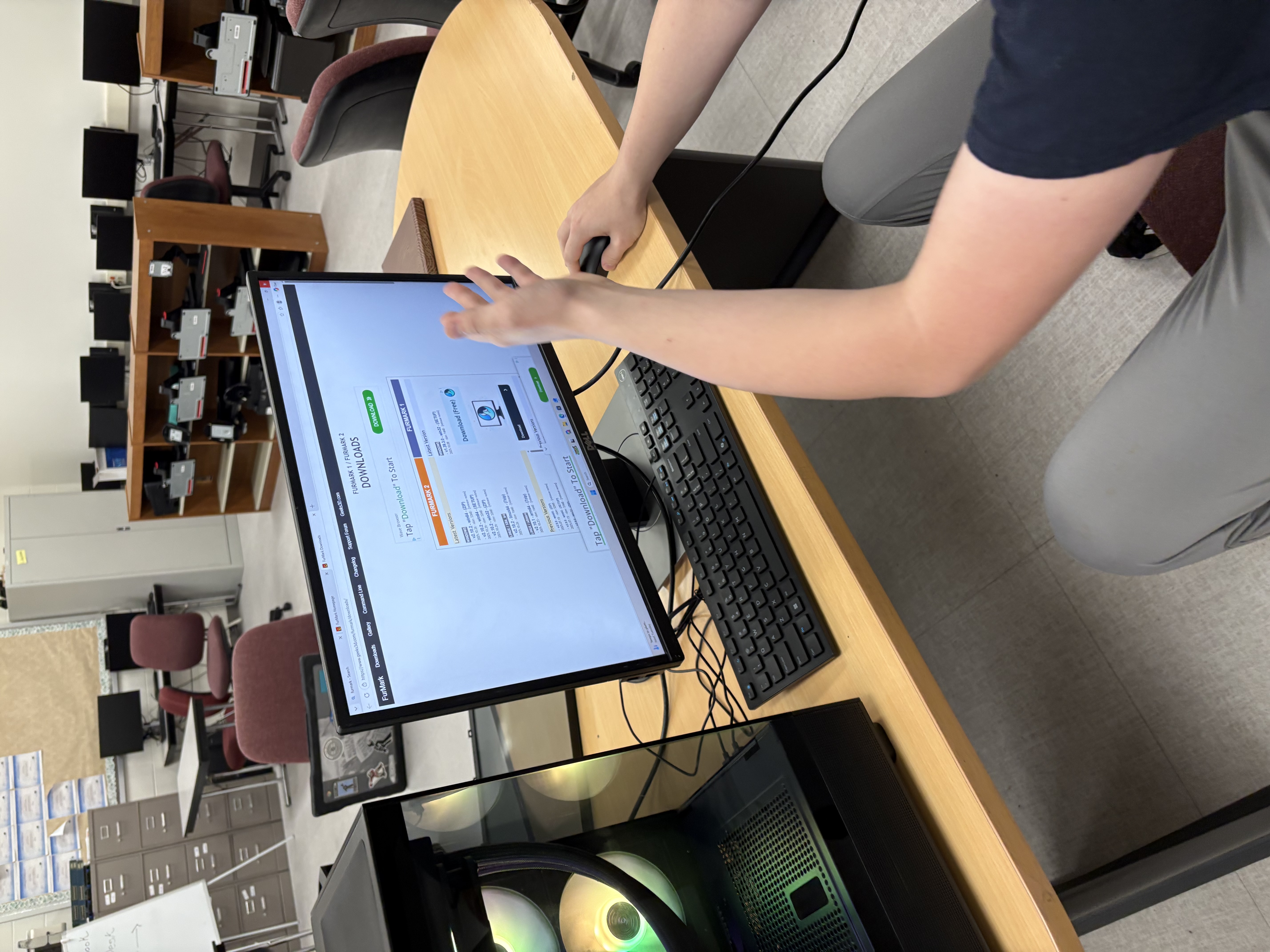
PC Build Project 3

Gaming PC Build

PC Repair & Upgrade

System Maintenance

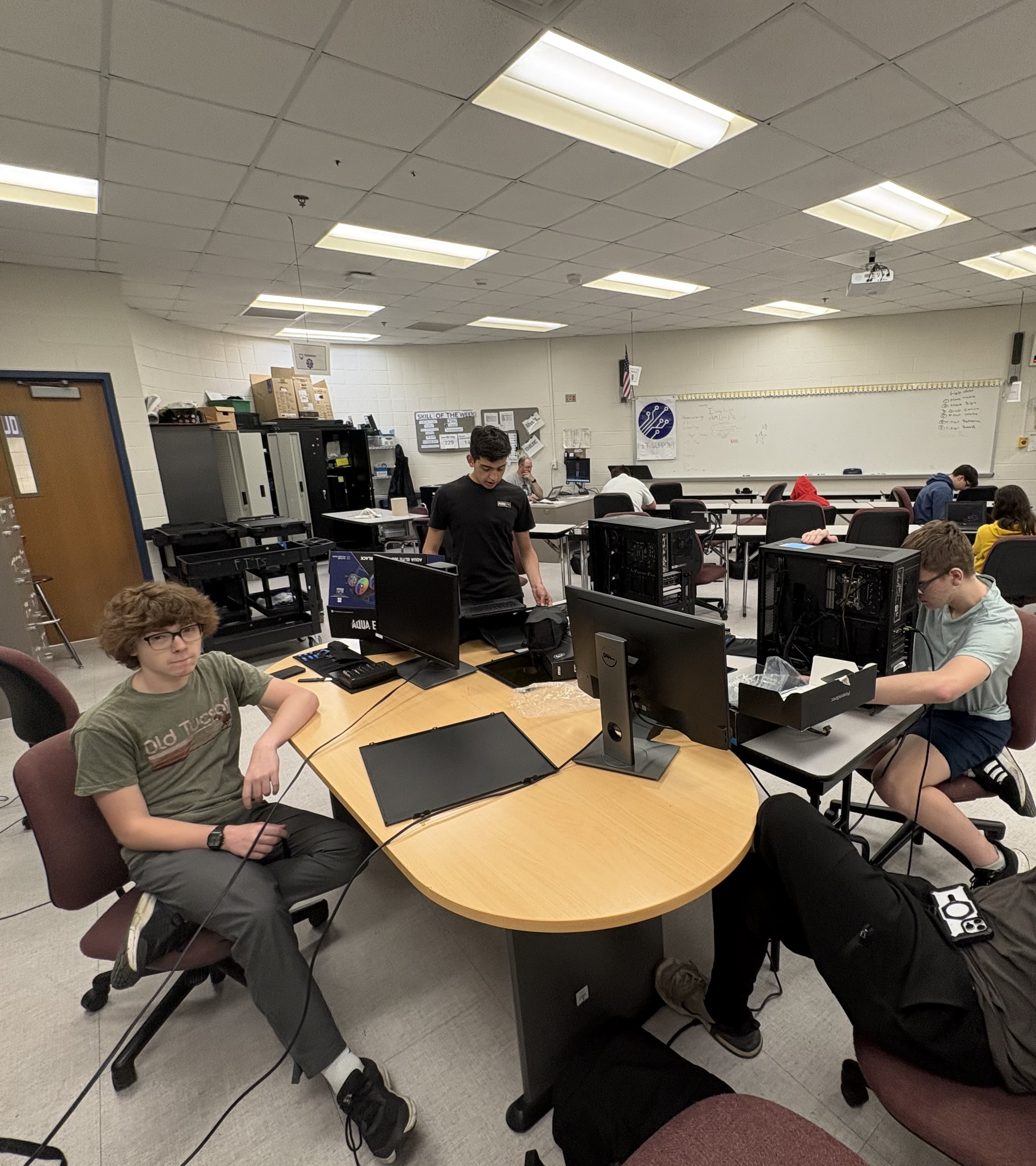
Professional Installation

Professional Setup

Frequently Asked Questions

Quick answers to the most common questions.

Most repairs are completed within 24–72 hours depending on the issue and parts availability. We'll keep your ticket updated every step of the way.
Visit the Track Ticket page and enter your ticket ID or ticket number along with the email you used when submitting.
Yes, we offer both in-person support and remote assistance via Discord. Select "Online Support" when submitting your ticket if you'd prefer remote help.
We accept cash, Venmo, and other digital payments. Payment details will be discussed once your ticket is reviewed and a quote is provided.
Absolutely. We treat your data with full confidentiality and will never access personal files outside of what is necessary to diagnose or fix the issue. We always recommend backing up your data before any service.
Yes! We build fully custom PCs tailored to your budget and use case — gaming, workstation, streaming, or general use. Submit a ticket under "PC Building" to get started.

Resources & Tips

Learn how to keep your PC running smoothly

← Back to Resources

How to Speed Up Your PC

July 8, 2026 Posted by Vincenzo Turcotte | Shop Tech Support

One of the most common questions I get is: "How can I speed up my PC without breaking the bank?" The good news is that most performance issues aren't about having the newest hardware. Whether you have a tight budget or can invest in upgrades, there are proven strategies that work at any price point.

Budget Level: $0 (Software-Only Fixes)

Kill Your Startup Programs - Windows launches dozens of applications on boot that you probably don't need running constantly. Open Task Manager (Ctrl+Shift+Esc), go to the Startup tab, and disable anything unnecessary. This alone can cut boot time in half with zero investment.

Run Disk Cleanup - Temporary files, cache, and old Windows updates accumulate quickly. Search "Disk Cleanup" and run it. You'll typically free 5-15GB of space, which directly improves performance. No cost, significant impact.

Scan for Malware - I've found that 60% of slow PCs have malware or PUPs (Potentially Unwanted Programs) running in the background. Malwarebytes has a free version that catches most issues. Removing this junk can be transformative.

Budget Level: $30-80 (RAM Upgrade)

If you're still on 4-8GB of RAM, upgrading to 16GB is one of the highest ROI upgrades you can make. RAM is affordable, easy to install yourself, and the performance jump is immediate and noticeable. This is where I recommend most people spend if they have some budget.

Budget Level: $100+ (SSD Upgrade)

Replacing your hard drive with an SSD is the single biggest performance jump you'll feel. If you're still running a mechanical drive, this is worth prioritizing over CPU or GPU upgrades. The difference between HDD and SSD is night and day.

Budget Level: All Budgets (Performance Settings)

Disable unnecessary visual effects. Search "Performance Options" and select "Adjust for best performance." You'll sacrifice some visual polish, but the CPU and RAM savings are real. Most people don't miss the animations.

The Real Strategy: Performance improvements don't require big spending. Start with the free fixes, then prioritize RAM if you have $50-80 to spend. Most users see 70-80% of maximum improvement from just these steps. If you need help determining the best path for your specific situation and budget, reach out and we'll create a plan that works for you.

Vincenzo Turcotte
Shop Tech Support

← Back to Resources

PC Maintenance Checklist

July 15, 2026 Posted by Vincenzo Turcotte | Shop Tech Support

Good maintenance prevents expensive repairs. I've seen customers spend thousands on replacements that could have been prevented with simple, low-cost upkeep. The best part? You don't need a big budget to maintain your PC effectively. Most of what I recommend here is either free or under $50 annually.

Weekly Tasks (Free - 15 mins)

  • Restart your PC (forces memory cleanup and system refresh)
  • Run Windows Update (keeps security patches current, free protection)
  • Quick Task Manager check (find and kill resource-hogging processes)

Monthly Tasks (Free - 1 hour)

  • Disk Cleanup (built-in Windows tool, free)
  • Malwarebytes scan (free version catches most threats)
  • Verify backups are running (prevents data loss, free with built-in Windows Backup)
  • Visual dust check (look for dust buildup in your case)

Quarterly Tasks (Minimal Cost - 2 hours)

  • Full antivirus scan (Windows Defender is free and solid)
  • Uninstall unused software (frees space, improves boot time, free)
  • Update drivers (most are free through Windows Update or manufacturer websites)
  • Check drive health with CrystalDiskInfo (free tool, warns of early failure)
  • Physical case cleaning with compressed air (~$5 one-time expense)

Annually (Low-to-Moderate Cost - 4 hours)

  • Replace thermal paste if needed (~$10, prevents overheating)
  • Replace air filters or fans if dusty (~$15-50 depending on case)
  • Check SMART data for drive warnings (free diagnostic, early prevention)
  • External backup of critical files (external drive ~$50-100, one-time)

The Budget Breakdown

You can maintain a PC with zero spending if you're disciplined about the free tasks. To do it really well with modest spending, budget about $50-100 annually on compressed air, replacement filters, and maybe thermal paste. Compare that to a $300+ repair from preventable hardware failure.

My recommendation: Set calendar reminders for the free maintenance tasks. They're boring, but they're the difference between a PC that lasts 5+ years and one that needs expensive repairs. Prevention is always cheaper than replacement.

Vincenzo Turcotte
Shop Tech Support

← Back to Resources

When to Replace vs Repair

July 22, 2026 Posted by Vincenzo Turcotte | Shop Tech Support

The question I hear most often is: "Is it worth fixing or should I just buy a new one?" The answer depends on your budget, the PC's age, and what failed. I work with customers at every budget level, and my job is to find the best solution for *your* situation, not to push unnecessary spending.

The Budget-Conscious Framework

Start with this question: If the repair costs more than 40-50% of a replacement PC, does replacing make sense? But that's just math. You also need to consider what you can afford right now versus what you can afford over time.

Budget Level: Under $100

If your repair is under $100, fix it almost every time. This covers most issues: hard drive replacement ($50-100), RAM upgrades ($30-80), power supply ($60-100). These are high-value fixes that extend PC life by years.

Budget Level: $100-300

This is where decisions get interesting. A GPU replacement ($200-300) or motherboard ($150-300) is significant spending. Here's my approach: If your PC is under 4 years old and otherwise solid, fix it. If it's over 5 years old and showing other problems, it might be time to save toward a replacement instead.

Budget Level: $300-800

A CPU or multiple component failures at this price point makes replacement worth considering. But again, PC age matters. A 2-year-old machine with a dead motherboard? Repair it. A 6-year-old machine with multiple failing components? Start saving for a new one ($700-1000 gets you a solid modern PC).

What to Consider Beyond Cost

PC Age: 2-3 years old = repair. 5+ years old with multiple issues = replace.

Usage: Work machine you depend on? Repair costs less than downtime. Gaming PC? Modern components offer huge performance gains.

Electricity Costs: Older PCs use 30-50% more power. Replacement might pay for itself in electricity savings over 3-4 years.

Your Budget Right Now: Can't afford $400 repair this month? Fix it for $100 now, save for replacement later. Can afford $800? Replace it and get 5+ years out of a modern machine.

My Honest Recommendation

Work with what you can afford. If it's a cheap fix, do it. If it's expensive, we can talk through whether waiting and saving for a newer PC makes sense. Everyone's situation is different, and I'll always give you options that fit your budget, not just the most expensive solution.

Need help deciding? Reach out on Discord or submit a support ticket with details about your PC and what failed. I'll give you an honest assessment based on your specific situation.

Vincenzo Turcotte
Shop Tech Support

Get In Touch

Have questions? We're here to help.

💬

Discord

Join Our Community

Real-time support & tips
🎟️

Support Portal

Submit or track tickets

Quick Help ● Online

Hi! 👋 Need quick help? Use Discord for fastest response or submit a support ticket.

🎮 Join Discord